[RTL8722CSM] [RTL8722DM] Transmit IR NEC Raw Data And Decode
Materials
Ameba x2 (one for IR transmitting, the other one for IR receiving)
Grove – Infrared Emitter x1 (Figure 1)
Grove – Infrared Receiver x1 (Figure 2)
Example
In this example, we use two Ameba RTL8722 modules that connecting with an infrared (IR) Emitter and an IR Receiver separately to transmit and receive IR NEC Raw data.
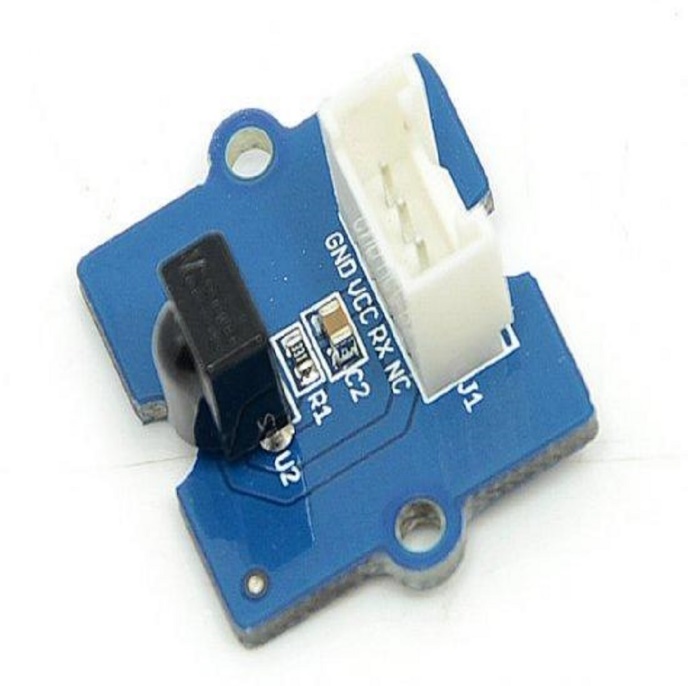
Figure 1: Grove – Infrared Receiver
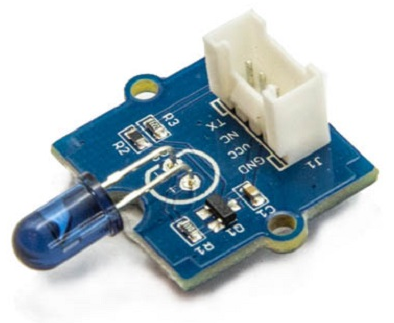
Figure 2: Grove – Infrared Emitter
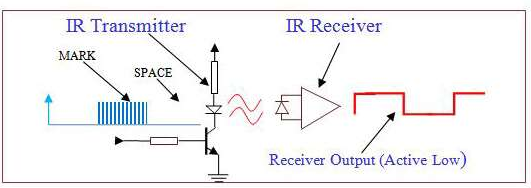
Figure 3: A typical IR transmission and reception setup implementation
For more details, please refer to SB-Projects’ topic of IR Remote Control Theory to learn the theory of IR remote controls operation and a collection of IR protocol descriptions. In this example, we are going to use NEC (Now Renesas, also known as Japanese Format) as the transmission protocol.
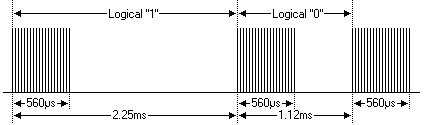
Figure 4: Modulation of NEC
Since a total number of 32-bit data together with the header and the end-bit will be transferred (Figure 5). If we separate the data in the time-frame (in us), there will be ( 2 + 32 ) x 2 + 1 = 69 “marks” / “spaces” to be transmitted (Figure 6), which forms the raw NEC data we would like to transmit in our Arduino “*.ino” file. This part of the code can be modified by users. Details of how to obtain raw data code for your remote devices, you may refer to Ken Shirriff’s blog, where it provides multiple libraries provided online.
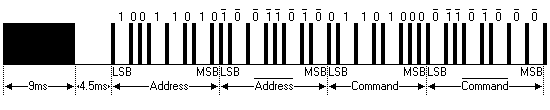
Figure 5: Sample of a Full NEC Data (in logic1 or 0)

Figure 6: Sample of a Full NEC RAW Data (in us)
Figure 7 and 8 shows the pin configuration of IR Emitter and Receiver with Ameba RTL8722 board.
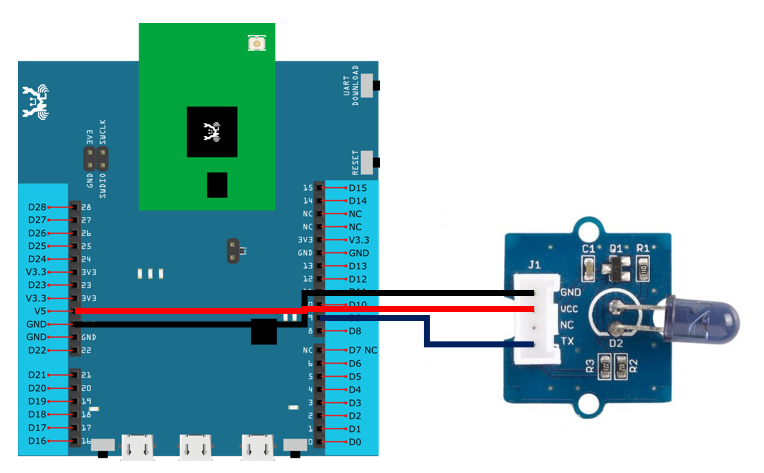
Figure 7: Pin configuration of IR Emitter and Ameba RTL8722
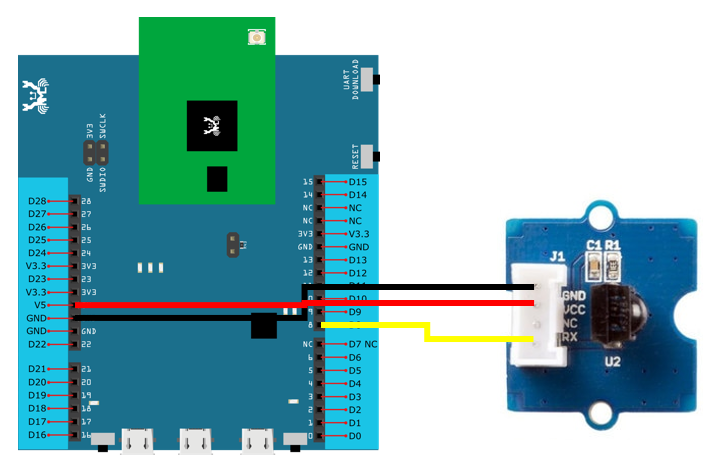
Figure 8: Pin configuration of the IR Receiver and Ameba RTL8722
After the connection is being set up correctly, we will move to the coding part for this example. First, make sure the correct Ameba development board is selected in Arduino IDE: “Tools” -> “Board” -> “RTL8722CSM/RTL8722DM”.
Open the “IRSendRAW” example in “File” -> “Examples” -> “AmebaIRDevice” -> “IRSendRAW” (Figure 9) and upload to 1st board connected with IR Emitter:
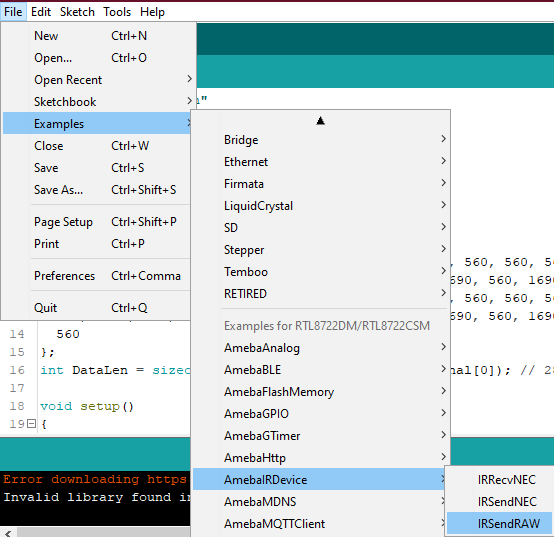
Figure 9: Example Location of IRSendRaw and IRRecvNEC
After successfully upload the sample code for IRSendRaw, you might need to upload the IRRecvNEC example for the 2nd board connected with IR Receiver from “File” -> “Examples” -> “AmebaIRDevice” -> “IRRecvNEC”.
After opening the serial monitor on the IR Receiver side and press the reset buttons on two boards, the data “48” will be received every 3 seconds (due to the delays () function, not compulsory to wait). After decoding the signal from the receiving Pin D8 and transmitting Pin D9 with Logic Analyser and Pulse View (Figure 10), the result is also shown as “48” after decoding the receiving data with IR NEC Protocol.

Figure 10: Pulse View results from sending and receiving pin
Code Reference